Wednesday, 29 June 2016

Calling C# Methods from SQL Server

I was recently able to take advantage of a useful Microsoft SQL Server feature that enabled me to call a .NET library class method from a stored procedure.

Brief Context


I was working on a client project in which our team were required to write an ETL process. The ETL process was mostly written using SQL Server Integration Services (SSIS). In one part of the ETL process, we needed to do some fuzzy string similarity matching. We found that the Levenshtein string distance algorithm suited our requirements.

Aside: The Levenshtein algorithm takes two strings and computes the "edit distance" which indicates how many transformations are necessary to reach a given target string from a given source string. For example, the function Levenshtein("test", "tear") would return the value two.

In our case, we wanted to abstract the Levenshtein output into a percentage, so for example, the function GetTextSimilarity("test", "tear") would return 50% - indicating that the inputs are half similar.

Creating the Class Library


The full code for the class library is available on GitHub.

The first step is to create a .NET class library which targets a .NET framework version that the flavour of SQL Server you are working with supports. In my case, we created a C# class library targeting .NET framework 4.5 as we were going to use the class library in Microsoft SQL Server 2014.

Ensure that the method you want to call from SQL Server is marked static. You will need to decorate the method with the Microsoft.SqlServer.Server.SqlProcedure attribute. If you look at my class library code, you'll find two classes, namely, LevenshteinDistance and StringCompare. The LevenshteinDistance class contains the algorithm implementation in a static method marked with the SqlProcedure attribute. Similarly, the StringCompare method (shown below) contains one method, GetTextSimilarity, which is the method we want to call as a function from SQL server.

The GetTextSimilarity method calls the LevenshteinDistance.GetLevenshteinDistance method and returns the percentage similarity value that we required. Note that only the method you want to call as a function requires the SqlProcedure attribute. In this case, we could have only marked the GetTextSimilarity method with this attribute as this is the only method we want to call from SQL Server.

Registering the Class Library in SQL Server


Once you've finished writing the class library and you are ready to call your method(s) from SQL Server, you'll need to execute the following SQL script (obviously, you'll need to replace the database name, assembly file path, function name and method namespace).


Once the script has finished executing, you will find the registered assembly under the Database\Programmability\Assemblies node in SQL Server Management Studio.

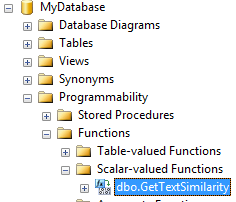
If you look under Database\Programmability\Functions, you'll find the method you registered earlier (see SQL script).


You can now call your method as a standard T-SQL function call. Quite useful!

Saturday, 19 December 2015

C# CSV Library and HTTP Handlers

A colleague and I was recently looking at some old ASP.NET WebForms code which generated a potentially large CSV string and returned it in a response to a HTTP request. The original code was placed in a standard ASP.NET WebForms page in the OnLoad event handler. As the code was working with the HttpResponse object and writing the CSV directly to the HTTP output stream, we determined that this code was better placed in a HTTP Handler. The primary advantage of using a HTTP handler to generate the file is that we can bypass the unnecessary ASP.NET WebForms page life cycle.

The existing code was using a StringBuilder to generate the CSV string in the page OnLoad event handler. As you may imagine, this looked messy and was a pain to maintain. To abstract the CSV string creation logic, my colleague introduced me to a useful CSV library called LINQ to CSV. The project page link for this library is here and the library is available as a NuGet package.

The LINQ to CSV library enabled us to decorate some properties in a model class with attributes that specify how to output the property in CSV form. The example below (from the library project page) shows how to apply the attributes:

public class Product
{
    [CsvColumn(Name = "ProductName", FieldIndex = 1)]
    public string Name { get; set; }
    [CsvColumn(FieldIndex = 2, OutputFormat = "dd MMM HH:mm:ss")]
    public DateTime LaunchDate { get; set; }
    [CsvColumn(FieldIndex = 3, CanBeNull = false, OutputFormat = "C")]
    public decimal Price { get; set; }
    [CsvColumn(FieldIndex = 4)]
    public string Country { get; set; }
    [CsvColumn(FieldIndex = 5)]
    public string Description { get; set; }
}

Once your model class is decorated, you can then use other classes of the library to generate a CSV representation of a collection containing your model instances. This representation can be output to disk as demonstrated in the code example below:

IList<Product> products = new List<Product>();
products.Add(
    new Product
    {
        Name = "Samung Galaxy S6",
        LaunchDate = DateTime.Today,
        Price = 500,
        Country = "United Kingdom",
        Description = "This is a Samsung phone product"
    }
);

products.Add(
    new Product
    {
        Name = "Apple iPhone 5",
        LaunchDate = DateTime.Today,
        Price = 600,
        Country = "United States",
        Description = "This is an Apple phone product"
    }
);

CsvFileDescription inputFileDescription = new CsvFileDescription();
inputFileDescription.SeparatorChar = ',';
inputFileDescription.FirstLineHasColumnNames = true;

CsvContext csvContext = new CsvContext();
csvContext.Write(products, @"C:\Products.csv");

Usefully, the CsvContext class of the library also supports an overload to the Write method which accepts a TextWriter stream. Passing a TextWriter stream to this overload results in the library outputing the CSV representation to your stream rather than a file on disk. In our case, we used a StreamWriter that wrote to a MemoryStream. Once the CSV file content was in the MemoryStream instance, we sent the stream contents in the HTTP response from the HTTP handler. The full HTTP handler code is below (using the example product data).

public class ProductsExportHandler : IHttpHandler
{
    public bool IsReusable { get { return true; } }

    public void ProcessRequest(HttpContext context)
    {
        context.Response.AddHeader(
            "content-disposition", 
            "attachment;filename=BulkExport.csv"
        );
        context.Response.Cache.SetCacheability(HttpCacheability.NoCache);
        context.Response.ContentType = "application/vnd.text";

        IList<Product> products = new List<Product>();
        // Add products...
            
        var inputFileDescription = new CsvFileDescription();
        inputFileDescription.SeparatorChar = ',';
        inputFileDescription.FirstLineHasColumnNames = true;
            
        using (var memoryStream = new MemoryStream())
        {
            using (var streamWriter = new StreamWriter(memoryStream))
            {
                var csvContext = new CsvContext();
                csvContext.Write(products, streamWriter);
                    
                streamWriter.Flush();
                    
                context.Response.BinaryWrite(memoryStream.GetBuffer());
            }
        }
    }
}

Sunday, 6 September 2015

Practice Test Driven Development with C# Exercises on Exercism.io

I was recently introduced to Exercism.io which is a place where you can download a number of C# exercises to work on. Exercism.io not only supports C# but also other programming languages. Each exercise comes with a pre-written suite of unit tests and it is your task to implement the required functionality in order to make the unit tests pass.

The exercises are a good way to get familiar with Test Driven Development (TDD) without having to write the tests. You can still semi-follow the prescribed red-green-refactor approach, where you initially have a test that fails, you then write an implementation to make the test pass and then you refactor your implementation until you're happy with it.

The Exercism.io website provides a useful command line interface tool which you use to fetch exercises and then also submit your solutions. Once a solution is submitted, it is made available on Exercism.io for others to "nitpick". This is a great feature where others who have done the same exercise can view your solution and suggest improvements. Although I've found the C# community on Exercism.io to be fairly quiet (with only a few people nitpicking), I can see this being a very useful feature once more people start to use the site.

If you've also heard of Project Euler (which I blogged about here), then yes, Exercism.io is similar in principle, but there are differences which you'll find quickly after trying both sites. I've tried a few exercises in the C# section of Exercism.io - they are fun and a good to practice your C#/.NET framework knowledge. Highly recommend this site to anyone who enjoys small programming exercises in their spare time and anyone who is interested in trying TDD. You can get started here.

Tuesday, 25 August 2015

Conway's Game of Life: An Exercise in WPF, MVVM and C#

This blog post was written for the Lockheed Martin Insight blog, sharing here for the external audience.

Last month I started the Pluralsight summer camp by watching an interesting video in which the presenter implements Conway's Game of Life using HTML, CSS and JavaScript. The video inspired me to write an MVVM based implementation of the game using Windows Presentation Foundation (WPF) and C#. There were two aims to this exercise. The primary was for me to reacquaint myself with WPF, which is a framework I've been wanting to spend some time with for a while. And the secondary was to implement something fun.

The purpose of this blog post is to document the exercise. We'll cover what Conway's Game of Life is, a bit about the design and then see how some WPF and .NET framework features help in implementing an MVVM solution. The source code for the implementation is available on GitHub.

So, what is Conway’s Game of Life?

The Game of Life is a popular cell automaton algorithm that simulates the evolution of life. The algorithm was designed by British mathematician John Conway and has gained popularity for its simplicity. In its purest form, the universe for the Game of Life is represented by a grid which has an infinite number of cells. Each grid cell can contain a dead or living cell. The game starts with the user providing a seed generation of living cells. Based on the initial generation of cells, the universe evolves through generations to simulate evolution. For a generation to evolve, the following four rules are applied to the current generation:

  1. Any live cell with fewer than two live neighbours dies (due to under-population).
  2. Any live cell with two or three live neighbours lives on to the next generation.
  3. Any live cell with more than three live neighbours dies, (due to overcrowding).
  4. Any dead cell with exactly three live neighbours becomes a live cell (by reproduction).

And that's it. By applying these four rules, it is surprising to see how a universe can evolve to create complex symmetrical patterns, even when there is no symmetry or pattern in the seed generation.

Arriving at an Object-Oriented Design

The MVVM architectural design pattern was adopted to achieve a clear separation of concerns. I started by identifying the models:

  • Cell Model: Represents a single cell in the universe. Encapsulates data for the cell's position and whether it is dead or alive.
  • Generation Model: Represents a generation of life. Encapsulates data on the size of the universe, the cells within the universe and provides functionality to alter the living state of cells.

The EvolutionEngine class was identified to hold the current generation and take on the responsibilities of:

  • Evolving the current generation to the next generation, as per the rules of evolution.
  • Detecting if the current generation can no longer evolve.
  • Keeping track of the number of generations that the current generation has evolved through.
  • Resetting the generation back to an empty state.

A single view-model was identified, namely, GenerationViewModel. The view-model uses the EvolutionEngine class to:

  • React to actions that originate from the view.
  • Provide information for the view to display.
  • Provide notifications to the view if the observed information changes.

In summary, we have a couple of models, an engine class to work with the models and a view-model to keep the view in sync with the models.

Writing the MVVM WPF Implementation

The following diagram illustrates how the components of an MVVM solution are related in WPF (image source).

A view is built using the eXtensible Application Markup Language (XAML). The association between a view and its view-model is accomplished through the DataContext property of the view. Controls in a view are bound to properties in the view-model using the data binding features of WPF. In a scenario where the view-model is only serving as a proxy between the view and model, you may consider the use of a view-model superfluous and let the view-model expose the underlying model (see the "Why Use a ViewModel?" section in an MSDN article). Actions performed on the user interface are encapsulated in commands that are exposed by the view-model (using the Command design pattern). We will see how a view-model exposes its supported commands using the ICommand interface. Finally, notifications are raised as C# events from the view-model. The INotifyPropertyChanged interface is used primarily for this purpose.

As I’ve alluded to, there are a number of useful features in WPF and .NET that assist in the implementation of an MVVM solution. The particular features that I’m referring to are:

  • The FrameworkElement.DataContext property.
  • Using the Binding class to associate parts of the view to the view-model.
  • Raising notifications through the INotifyPropertyChanged interface.
  • Converting incompatible data between bound properties using the IValueConverter interface.
  • Encapsulating and executing actions using the ICommand interface.

Each of these features were used in the implementation for the game. In the sections below, we will discuss what each of these features are and see examples of how they were adopted in the solution.

Setting the Data Context and specifying a Binding

The Grid control was a natural choice to visually represent the universe. Each cell of life within the universe is represented by a TextBlock control. The code snippet below shows how the TextBlock is created:

In WPF, user interface controls derive from the FrameworkElement class which contains an important property named DataContext. The DataContext property of a control is set to an object that the control uses to pull its data from and/or push its data to. This object is typically a view-model or model instance. By setting the TextBlock.DataContext property to an instance of the Cell model we can bind properties of the TextBlock control to properties of the Cell model.

Aside: As a WPF view is hierarchical, a nice feature of using the DataContext property is that it can be inherited from a parent user interface control.

In our Game of Life implementation, we use the Background (colour) property of the TextBlock control to indicate whether the cell is dead or alive. On lines 7-10 of the CreateCellTextBlock method, you’ll see that we call the SetBinding method. The first parameter to this method specifies which property we want to set the binding for (made possible with Dependency Properties) and the second parameter accepts a Binding instance.

The Binding instance is created by the following method:

There are a few things to note here. Firstly, the Binding object supports a Source property which we do not explicitly set. The reason for this is that if no Source property is set on a binding, the binding defaults to using the DataContext property on the control that the binding is set on. In this case, the TextBlock control’s DataContext property is already set to a Cell model instance. We can therefore set the Path property to point to a particular property within the model, in this case the boolean Cell.Alive property.

The Mode property is set to the enumeration value of BindingMode.TwoWay, meaning that any change to the TextBlock control through the user interface updates the model and conversely any change to the model updates the user interface. To support two-way binding, the Cell model will need to implement the INotifyPropertyChanged interface so that any change to the Alive property is notified to the view.

Implementing Notifications with INotifyPropertyChanged

The INotifyPropertyChanged interface is implemented by classes that need to notify clients (in our case, the view) that an observed property value has changed. Typically, this interface is implemented by view-models or models that want to broadcast changes to certain property values.

INotifyPropertyChanged supports one member, the PropertyChanged event. If you have a two-way binding setup between a user interface control property and a view-model property, programmatic changes to the view-model property will not be reflected in the user interface unless the view-model implements INotifyPropertyChanged and the observed property’s setter raises the PropertyChanged event.

In our solution, we wrote a reusable ObservableBase class that implements INotifyPropertyChanged. The Cell and GenerationViewModel classes both inherit from ObservableBase.

The PropertyChanged event is raised from the OnPropertyChanged method which accepts a single parameter – the name of the property that has changed. The CallerMemberName attribute is used so that we can call this method without having to specify a hardcoded string with the property name. The code below shows the implementation for the Cell model, which inherits from ObservableBase.

Notice how the Alive property setter calls the OnPropertyChanged event. An unfortunate side effect of implementing INotifyPropertyChanged is that you’re unable to use automatic properties for the properties that need to raise the notification event.

Converting Between Bound Properties Using IValueConverter

In our earlier code snippet for the CreateCellAliveBinding method, you may have noticed that we also set the Binding.Converter property. The Converter property is used when we bind two properties that have a type mismatch or expect data in different formats. To recap, we are using the Background (colour) property of the TextBlock to indicate if the cell represented by the TextBlock is dead or alive. The Alive property on our Cell model is of boolean type, therefore, we need our binding to convert the boolean value to a colour. This is where the IValueConverter interface is used to take on the role of an adapter.

The implementation of the IValueConverter is in the class LifeToColourConverter, shown below:

The IValueConverter interface supports two methods, namely, Convert and ConvertBack. The Convert method is used when binding the value from the source property (Cell.Alive) to the target property (TextBlock.Background). Conversely, the ConvertBack method is used when updating the source from the target. If you are only using one-way binding, then you are only required to provide an implementation for the Convert method (the ConvertBack method can safely throw the NotImplementedException).

Handling User Interface Actions Using the Command Design Pattern

A view-model exposes a set of actions that are encapsulated within commands. Commands are exposed as properties on the view-model so that user interface controls can bind to them. The logic for a command is encapsulated within a class that implements ICommand. The ICommand interface supports two methods; CanExecute and Execute. The CanExecute method returns a boolean value which determines whether the command can execute. The Execute method contains the command logic to run.

In our solution, the view's DataContext is set to an instance of the GenerationViewModel class. In this view-model, we expose the following three commands:

RelayCommand is a popular implementation of the ICommand interface which has been available as open source for some while. We are using a particular variant of RelayCommand which enables a single parameter to be sent to the method that ultimately executes the command. You can view how the three command properties are initialised and the implementations for the CanExecute/Execute methods in the GenerationViewModel class.

An advantage of the RelayCommand implementation for ICommand is that it achieves reusability by using the Predicate and Action delegates to reference the CanExecute and Execute methods respectively. This avoids the need for writing a separate ICommand implementation for every command that the game supports.

In the user interface for the game, we have two buttons. One button binds to the view-model EvolveCommand property and the other binds to the ResetCommand property. The XAML snippet below shows how the command bindings are created:

If the ICommand.CanExecute method returns false for a command that is bound to a button, the button is automatically disabled.

The ToggleCellLifeCommand is executed when the user is setting up the initial generation of living cells, the binding for this command is setup programmatically by the following method (called by the CreateCellTextBlock method shown earlier):

We are using the InputBinding class to specify that a left mouse click on the TextBlock should execute the ToggleCellLifeCommand and pass it a formatted string that contains the cell position. The ToggleCellLifeCommand method implementation in the GenerationViewModel class looks up the cell and toggles the Alive property boolean value. As we have an active binding between each TextBlock and its Cell.Alive property, the TextBlock colour will automatically change to a colour that represents the current value for the Alive property.

Summary

In this post, we’ve introduced and described some of the main features that WPF and the .NET framework provide for implementing MVVM based solutions. Conway’s Game of Life served as a fun exercise to use these features with.

We saw how the FrameworkElement.DataContext property enables seamless binding between user interface controls and properties on view-models. Two-way binding was shown to be possible using the INotifyPropertyChanged interface as a mechanism to notify the view of changes in the view-model. We introduced a useful ObservableBase class which implements INotifyPropertyChanged and can be reused in future WPF projects that need to support two-way binding. To bind two properties that work with different data types, we saw how an implementation of the IValueConverter interface can be used as an adapter. Finally, we saw how the command pattern is used to encapsulate logic in an ICommand implementation and how commands are exposed as properties on a view-model that can be bound-to in the view.

The animated graphic below shows the finished game. In the animation, we see the evolution for a simple L-shaped seed pattern in a universe of 25x25 cells. Surprisingly, this basic seed pattern lives through eighteen generations of life with some fascinating symmetrical patterns before it stops evolving.

Full source code is available in a GitHub repository.

Wednesday, 15 July 2015

Using Gacutil on a Non-Development Server

A short while ago I came across an issue with using the Visual Studio gacutil tool on a non-development server. By non-development server, I mean a system which does not have Visual Studio installed on it with the associated .NET Software Development Kit (SDK). I thought it may be useful to share the problem and solution here in case anyone else runs into the same issue.

The gacutil tool is part of the Visual Studio SDK and is used to install a strongly named assembly to the Global Assembly Cache (GAC). In my case, I had written a .NET 4 class library which was to be consumed by an application which lives on the same machine. As part of my deployment testing, I used the gacutil tool through the Visual Studio Developer Command Prompt to install the assembly in my local GAC. The result was successful as shown in the screenshot below.


I then had to install the same class library in the GAC of a test server. The test server had .NET Framework version 4 installed but because it doesn't have Visual Studio installed, it did not have the Developer Command Prompt and gacutil on the server. I then located the gacutil.exe and gacutil.exe.config files from my laptop file system, the location in my case was:

C:\Program Files (x86)\Microsoft SDKs\Windows\v8.0A\bin\NETFX 4.0 Tools

I copied the gacutil.exe and gacutil.exe.config files onto the test server and opened command prompt (cmd.exe) as administrator. Running the gacutil install command yielded no success response from gacutil, as shown in the screenshot below.


Surprisingly, gacutil gave no feedback as to what happened. After doing a bit of online research, I learned that gacutil has a dependency on a dll file named "gacutlrc.dll". In my laptop file system, I found this dependency in the folder location:

C:\Program Files (x86)\Microsoft SDKs\Windows\v8.0A\bin\NETFX 4.0 Tools\1033

I then created a folder named "1033" in the same directory that I copied gacutil.exe to on my test server. I copied the "gacutlrc.dll" file into the 1033 folder and executed the gacutil install command with a successful result.

In summary, if you are using the gacutil command on a non-development server, ensure you have the following in a single folder:
  • gacutil.exe and gacutil.exe.config
  • a folder named "1033" with the gacutlrc.dll file within it
It should then just be a case of opening a command prompt window as an administrator, navigating to the directory containing gacutil.exe and running the gacutil /i [path to assembly] command.

Sunday, 3 May 2015

Implicit vs. Explicit Interface Implementation

One feature of C# that I find useful is the support of implicitly or explicitly implementing interfaces. For example, if we have a simple interface such as the following:
public interface IDoSomething
{
    void DoIt();
}
You are probably already aware that we can implicitly implement the interface with code like:
public class MyClass : IDoSomething
{
    public void DoIt()
    {
        throw new NotImplementedException();
    }
}
We can use the implementation like:
MyClass myClass = new MyClass();
myClass.DoIt();
If MyClass is to explicitly implement the interface, the MyClass implementation would look like:
public class MyClass : IDoSomething
{
    void IDoSomething.DoIt()
    {
        throw new NotImplementedException();
    }
}
Notice the two differences.
  1. The access modifier has been dropped from the DoIt method signature
  2. The DoIt method name is now qualified with the interface name
So how does this now affect how we use MyClass? Well, you can no longer call the DoIt method on a direct instance of MyClass, you are now forced to code to the interface to access the DoIt method. So our previous code which instantiates MyClass and calls DoIt will no longer compile. Instead you will need to "explicitly" work with an instance of the interface to access the DoIt method. One example would be by declaring the type of the object to be the interface, like the following:
IDoSomething myClass = new MyClass();
myClass.DoIt();
Or you could cast the MyClass instance back to its interface to call the DoIt method, as shown in the following snippet:
MyClass myClass = new MyClass();
((IDoSomething) myClass).DoIt();
So, what are the benefits of explicitly implementing an interface?
  • As the implementer of a class, you can try to force good practice on clients by making them code to an interface
  • As a consequence of the point above, you can reduce tight coupling in your code as it shouldn't be using concrete implementations directly
  • If you are implementing two interfaces which have the same method signatures, or a method signature in an interface clashes with one already visible in your class, you can separate the two methods

Saturday, 2 May 2015

Microsoft Exam 70-483: Programming in C#

Earlier this week I took and passed the Microsoft 70-483 exam. In this post, I'll provide some insight into my preparation.

The 70-483 exam tests your knowledge on the C# programming language and the .NET framework. In this case, it was C# 5 and the .NET Framework version 4.5. By passing this exam, you earn the Microsoft Specialist certification.
 
The official Microsoft page for the exam can be viewed by clicking on this link. I took the exam in the UK. It should be noted that the 70-483 exam is also the first exam on the path for the MCSD Windows Store Apps certification, which is ultimately the certification that I'm aiming for. 
 
As described on the official 70-483 exam page, the exam is broken down into four main areas:
  • Managing program flow
  • Creating and using types
  • Debugging applications and implementing security
  • Implementing data access

Under each of these topics on the exam page, you get a detailed breakdown of what is covered. There is a plethora of resources on the web that you can use to prepare for this exam (blogs, MSDN, PluralSight etc.). I recommend watching the exam prep video on the exam page first - this sets the scene in more detail and gives you a better idea about the topics covered on the exam.
 
As the two guys mention on the Microsoft prep video, there is no substitute for actual practice. At the beginning of my preparation, I created a blank console application in Visual Studio and added to this as I revised various topics. I wrote a method for each particular language construct or .NET framework class that I wanted to further understand. In each method, I practiced using a particular construct/class by referring to the MSDN site for the topic. I found this approach useful in clarifying how something works - the code produced also served as a useful reminding aid when the exam date got closer (the brain recalled those "eureka" moments that I had when writing the code). LINQPad is also a useful tool for practicing.
 
I found the official Microsoft exam reference book by Wouter de Kort useful (Amazon link here). Although the book shouldn't be used as a definitive resource, it serves as a useful aid in introducing various topics which you then should build upon with your own further research. I particularly found the multithreading, cryptography and managing assemblies sections of the book a worthwhile read.
 
I also bought the practice tests from MeasureUp. The practice tests were useful to get a feel for question formats - which are a mixture of multiple choice (sometimes with more than one correct choice) and drag and drop type questions. You can also loosely simulate test conditions by running the MeasureUp tests in "certification mode" - meaning that you are timed and unable to see the answers as you progress in the test. Note that the actual exam format/time can differ compared to the MeasureUp practice certification mode tests.
 
Finally, ensure you read the website of the test centre. In the UK, Microsoft has appointed the PearsonVUE test centres. I found the videos on the PearsonVUE website useful in telling me what to expect on the day (security procedures, the software used for the exam itself and what I need to bring with me on the exam day).
 
If you're taking this exam, all the best and feel free to leave a comment about your experiences!

Wednesday, 15 April 2015

C# How To: Using Implicitly Typed Arrays

Implicitly typed arrays allow the C# compiler to determine the most appropriate type for an array. The selected type is based on the values you initialise the array with. This useful feature was introduced in C# 3.0.
var intArray = new [] { 1, 2, 3 };
var stringArray  = new [] { "hello", "world", null };
var nullableIntArray = new [] { 1, (int?)2, 3 };

Console.WriteLine(intArray.GetType());
Console.WriteLine(stringArray.GetType());
Console.WriteLine(nullableIntArray.GetType());

// Following results in a compile-time error:
//    "No best type found for implicitly-typed array"
var notGoingToWorkArray = new [] { "hello", 1, 2f };

Friday, 16 January 2015

C# How To: CSV to List or List to CSV

The following code snippet shows how to convert from a CSV string to a List using the string class Split method.

const string ColoursCsv = "red,blue,green,yellow";
                        
List<string> coloursList = ColoursCsv.Split(',').ToList();

The following code snippet shows how to convert from a list to a CSV string using the string class Join method.

List<string> coloursList = new List<string> { 
    "red", 
    "blue", 
    "green", 
    "yellow" 
};

string coloursCsv = string.Join(",", coloursList);

C# How To: Convert to Convert String to Int

To convert from a string to an integer type you can use the Convert class as shown in the code snippet below. The Convert class contains a large number of static methods which allow you to convert from one type to another.

string numberString = "1985";
int number = Convert.ToInt32(numberString);

Monday, 12 January 2015

C# How To: Start a Program/Process

To start a program in C#, you can use the Process class. The Process class has a static method called Start which accepts a filename as a parameter. The example below shows how easy it is to start Microsoft Notepad from a C# application. Remember to include the "using System.Diagnostics;" directive at the top.

const string ProgramPath = "Notepad";

Process.Start(ProgramPath);

Note that if you need to start a program which accepts command line arguments, then you can use an overload of the Start method which accepts a ProcessStartInfo object. The following snippet shows how to open a file within notepad from your C# application.

const string ProgramPath = "Notepad";

Process.Start(new ProcessStartInfo
    {
        FileName = ProgramPath,
        Arguments = @"C:\WriteTest.txt"
    }
);

Sunday, 11 January 2015

C# How To: Create Text File And Write To It

Continuing with my new C# "how-to" theme, the code snippet below shows how to create a text file and write content to it using the StreamWriter class. Remember to add the "using System.IO;" directive at the top. Note that there is a StreamWriter constructor which supports a Boolean parameter "append" - if you pass true for this parameter and the file already exists, the StreamWriter will append content to the file rather than overwrite the existing content.

const string TextFilePath = @"C:\WriteTest.txt";

using (StreamWriter writer = new StreamWriter(TextFilePath))
{
    writer.WriteLine("Hello, world");
    writer.WriteLine("Bye, world");
}

C# How To: Read a Text File

This is the first of a series of C# "how to" posts. The following C# code snippet shows how to read a text file line-by-line using the StreamReader class. Remember to add the "using System.IO;" directive as this is the namespace which the StreamReader class is in.

const string TextFilePath = @"C:\ReadTest.txt";

using (StreamReader reader = new StreamReader(TextFilePath))
{
    string currentLine;

    while ((currentLine = reader.ReadLine()) != null)
    {
        Console.WriteLine(currentLine);
    }
}

Friday, 19 December 2014

DotNetZip - Zip Compression and Decompression .NET 4 and Earlier

Quick post about a useful third-party zip compression library if you're working in .NET framework version 4 or earlier.

I am working on a SQL Server 2012 Integration Services (SSIS) package. One of the steps in the package is to decompress a set of zip archives. Unfortunately, .NET script tasks in the SSIS package can only target .NET framework version 4 and earlier. This means that I couldn't make use of the new zip compression classes introduced in .NET 4.5 (see System.IO.Compression).

Fortunately though, there are a handful of open source .NET zip libraries available. The one I opted for is called DotNetZip. DotNetZip has an intuitive API and is working well with a large number of files (I am decompressing approximately 15,000 archives). The library is available as a NuGet package. The two snippets below show just how easy it is to compress and decompress files using zip.

To compress a file into a zip archive:
using (var zipFile = new ZipFile())
{
    // The empty string parameter ensures the file is archived to the 
    // root of the archive
    zipFile.AddFile(@"C:\Test\Data.txt", string.Empty);
    zipFile.Save(@"C:\Test\Data.zip");
}

To decompress files out of a zip archive:
using (var zipFile = new ZipFile(@"C:\Test\Data.zip"))
{
    zipFile.ExtractAll(@"C:\Test\Output");
}

Saturday, 22 November 2014

Short-circuit Boolean Evaluation

A useful but often not thought about feature is that many programming languages, including C#, support short-circuit evaluation of Boolean expressions. For example, in the following logical AND condition:

if (OperandOne && OperandTwo) 
{    
}

OperandTwo is only evaluated if OperandOne equals the Boolean value of true. If OperandOne's value is false, then the entire condition evaluates to false regardless of the value of any other operand in the condition (basic boolean algebra). Hence, there is no reason to continue evaluating the subsequent operands. This functionality is known as short-circuiting. You can confirm this language feature in C# with some basic code:

void Main()
{
    if (MethodOne() && MethodTwo())
    {
    }
}

bool MethodOne()
{
    Console.WriteLine("MethodOne: I got evaluated!");
    return false;
}

bool MethodTwo()
{
    Console.WriteLine("MethodTwo: I got evaluated!");
    return true;
}

After executing the code above, you'll see that the Console.WriteLine call in MethodOne only gets called. Short-circuit evaluation also works for the logical OR operator. Let's change the condition in the above code snippet to look like:

if (MethodOne() || MethodTwo())
{
}

If you now execute the code, you'll see that both of the Console.WriteLine calls in MethodOne and MethodTwo get called. However, if you now change MethodOne to return true and re-execute, you'll see that C#'s short-circuit evaluation kicks-in and only the Console.WriteLine in MethodOne gets executed.

Short-circuit evaluation gives you, as the programmer, a neater way to express your code. For example, without short-circuit evaluation, you wouldn't be able to construct conditions such as:

if (person != null && person.Age > minimumAge)
{
}

In this condition, a check is first made to ensure the person object isn't null before we go ahead and try to access the Age property on the object. If the person object is null, then the short-circuiting kicks-in and prevents the incorrect access of the Age property (which would result in a NullReferenceException to be thrown).

A lesser known nuance of C# is that short-circuit evaluation can be bypassed as a side effect of using the bitwise operators & and | without losing the semantics of the logical operation. For example, if we reuse our code snippet from earlier and make a minor adjustment to the condition to use the bitwise AND operator, we'll have:

void Main()
{
    if (MethodOne() & MethodTwo())
    {
    }
}

bool MethodOne()
{
    Console.WriteLine("MethodOne: I got evaluated!");
    return false;
}

bool MethodTwo()
{
    Console.WriteLine("MethodTwo: I got evaluated!");
    return true;
}

After executing the snippet above, you'll now see that both the Console.WriteLine in each of MethodOne and MethodTwo get called despite MethodOne (the first operand) returning false. Using a single & over && does not affect the semantics of the logical AND operator - so the code within the braces of the if-condition would still not get executed in this case (as the entire expression still evaluates to false). However, the key thing to note is that all operands are evaluated when bypassing short-circuit evaluation. Similar to the single & operator, short-circuit evaluation is also bypassed when using a single | (bitwise OR) without losing the semantics of OR.

It is generally advised not to bypass short-circuit evaluation but I find that it is important to be aware of it to catch bugs. In the past, I have noticed on several occasions that subtle bugs were introduced where a developer has used a single & and one of the operands in the expression had a side effect (e.g. a method that performs an action). Perhaps they came from a non-short-circuit-featured language where the single character versions of && and || are used to express logical AND and OR?. Take the following code snippet as an example:

if (person.HasChanges & _repository.UpdatePerson(person))
{
    ...
}

In this case, the UpdatePerson method will always be called, even when the person object states that it has no changes. This is a subtle bug which can easily be missed. Nevertheless, it is fixed by using the && operator to make use of short-circuit evaluation!

Saturday, 6 September 2014

Encouragement from Visual Studio

It's always nice to get some encouragement, in whatever form it comes in! Now you can get it from Visual Studio itself by installing this fun little add-on (developed by Phil Haack).

Sunday, 24 August 2014

CsQuery - JQuery for .NET

I'm currently working on a personal use utility application which requires some web scraping to extract data (from HTML) which can be locally processed by the application. Getting the raw HTML was straightforward enough using the HttpWebRequest and HttpWebResponse classes in the System.Net namespace.

I then reached the point where I had some raw HTML in a string that I needed to parse. After doing a quick search I found CsQuery (available as a NuGet package) which is an open source JQuery port for .NET. I was able to easily extract the data I required from the HTML using the familiar JQuery-like selectors. There is an example code snippet below which shows just how easy it is to use CsQuery.

var html = new StringBuilder();
html.Append("<html><body>");
html.Append("<h1>Hello, world!</h1>");
html.Append("<p class='intro'>This program is using CsQuery.</p>");
html.Append("<p id='author'>CsQuery is a library written by James Treworgy.</p>");
html.Append("</body></html>");

var dom = CsQuery.CQ.Create(html.ToString());

// Get the inner text of an element by element name selector
Console.WriteLine(dom["h1"].Text());

// Get the inner text of an element by class name selector
Console.WriteLine(dom[".intro"].Text());

// Get the inner text of an element by id selector
Console.WriteLine(dom["#author"].Text());

// Add a class to an element
dom["h1"].AddClass("title");
            
// Update the title text using new class in selector
dom[".title"].Text("CSQuery - a JQuery port for .NET");

// Now retrieve the new title by a class selector
Console.WriteLine(dom[".title"].Text());

// Pause console
Console.ReadLine();

The example source code is available in a C# console application project on GitHub - https://github.com/rsingh85/CsQueryExample.

Sunday, 10 August 2014

C# Static Code Analysis with NDepend

I was fortunate enough to recently obtain a Pro license for NDepend. If you've never heard of NDepend, it is a powerful .NET code analysis tool which provides useful information to support you in writing better code. As I work on a large codebase, my initial worry was that NDepend may slow down my user experience with Visual Studio. However, after using it for one month, I have not come across a single moment in which NDepend slowed my IDE experience.

I'll quickly admit that I have no extensive experience of using code analysis tools, therefore I can't comment on how NDepend compares to other tools in the market - but I can comment on the features that I've found very useful. A quick glance on the documentation section of the NDepend website shows the powerful feature set that the tool supports. Below I briefly go through some of the features that I've found useful to date. I still feel that I've barely scratched the surface of some of the features that NDepend supports (particularly CQLinq), so the hope is to come back and update this post as and when I find something else I like.

Visual Studio Support and Integration - NDepend supports all the major versions of Visual Studio (2008, 2010, 2012 and 2013). I installed NDepend (the Pro license) on Visual Studio 2010 Professional Edition and have had no issues since installation. I have also installed a trial version of NDepend on the more later Visual Studio 2013 and found that it works just as good. The installation process was quick and straight forward. I particularly like the non intrusive nature of the tool - after installation, you get an "NDepend" menu option in Visual Studio. From this menu you can run an analysis on your projects. There is also a small circle icon which appears in the bottom right corner of Visual Studio - if you hover your mouse over it you'll get quick access to certain options (like running an analysis or viewing the dashboard) and also information on the number of NDepend code rules violated (more on Code Queries and Rules below).

NDepend Dashboard - Once an NDepend analysis completes, you get the option to view the NDepend Dashboard. The dashboard itself opens within Visual Studio as a new tab and provides a comprehensive array of information. Some of the information you get is:

- Lines of code (split by the number of lines you've written and the number of lines not written by you)
- Method complexity information
- Quantity information on assemblies, namespaces, methods, fields, source files and lines of comments
- Code coverage by tests
- Third party usage
- Information on violated code rules

Note that NDepend also is able to create a report in HTML which provides all this information and more. I imagine that saving "snapshots" of these reports over time would really help in assessing how your codebase is growing in terms of quality over time.

Code Rules and Queries - Perhaps one of the main features which makes NDepend so powerful is CQLinq. CQLinq stands for Code Query LINQ which allows you to query your codebase using LINQ-based queries. NDepend comes with a large number of predefined queries which give you useful information out of the box. Using the "Queries and Rules Explorer" panel you can see the CQLinq code for each query and also define your own query. You can think of CQLinq as a way to very easily reflect on your codebase using simple LINQ-based syntax that you'll already be familiar with. CQLinq provides a very useful mechanism for you to extend NDepend based on the information you want to extract from your code base. It also opens the opportunity for you to share your CQLinq queries with other NDepend users. You can find out more about CQLinq here.

Additional Visual Studio Features - In addition to its core features, NDepend provides a number of extra useful features like code diffing, dependency analysis, visualisation of code metrics and richer code search features. From what I understand, NDepend search is essentially a user interface over CQLinq.

As mentioned above, I'm a fairly new NDepend user. I find it an intuitive tool to use and quickly found myself benefitting from the information the tool provides. I'm particularly now interested in trying out NDepend on a greenfield project and seeing how it affects and shapes the day-to-day development of a new codebase. The features mentioned above are a very small subset of NDepends full feature set. If you're interested in trying out and knowing more about the tool - you can download it from here and read about all the supported features here. I also encourage you to go through the very useful documentation part of the site.

Saturday, 19 July 2014

Empty Collections

I was reading one of my favourite Java programming books this morning and came across a simple coding pattern that I've been practicing in C# since I first read this book. I feel it's a useful thing to share here. For those of you that are interested, the book is "Effective Java" by Joshua Bloch. It contains a series of bite sized chunks of tips/recommendations that Java developers can use. Although the book focuses on the Java programming language, I feel there are lots of things it discusses that are transferrable to any programming language. One of these tips is the topic of this post.

Joshua mentions that it's better to return empty collections rather than null when writing methods. The reason being that any code calling your method then doesn't need to explicitly handle a special null case. Returning an empty collection makes the null check redundant and results in much cleaner method calling code. In C#, the System.Linq.Enumerable class has a useful generic method called Empty. When called with a type parameter, this method returns an empty instance of IEnumerable<T> (where T is your type parameter).

An example use:
public class House
{
    public IEnumerable<Person> CurrentOccupants { get; set; }
        
    public House()
    {
        CurrentOccupants = Enumerable.Empty<Person>();
    }
}
I also find that this method of instantiating (or returning) a collection states my intent more clearly than something like:
CurrentOccupants = new List<Person();
The MSDN documentation for Enumerable.Empty states that it caches the returned empty sequence of type TResult - so using this consistently for the same types can give (probably negligible) performance or memory usage advantages.

This pattern also reduces the chances of null reference errors from being raised in calling code. As mentioned above, the calling code then doesn't need to go through the usual boiler-plate null check code on the returned collection. Naturally, this leads to cleaner code as the calling code can process the collection the same way if it has items or doesn't have items within it.

Monday, 17 March 2014

Compiling ASP.NET MVC Views

If you've ever worked in ASP.NET MVC then you may have noticed that the server-side code in your views (e.g. your Razor logic) is not compiled as part of the build process. By default, views are compiled at runtime which means that any syntax error in your server-side view code may annoyingly only manifest after you've built, deployed and requested for the view which contains the error.

Fortunately, you can instruct the compiler to include your views in the build process by using the project-level boolean property MvcBuildViews. Setting this property to true will ensure your ASP.NET MVC views are also included in the build process and any syntax errors are caught at compile time.

To set this property, open your ASP.NET MVC application's csproj file in your favourite text editor. Locate the MvcBuildViews element and set its inner value to true. If you already have the project open in Visual Studio, the IDE will automatically detect the file change and ask you to reload the project. Once reloaded, you'll have compile time safety for your views.

The only disadvantage to this that I've noticed so far is that your builds take a bit longer to complete, however I've found this negligible compared to finding the error at runtime and having to do a patch deployment to another environment!